Introduction to GitHub
GitHub is a popular platform that allows developers to store, manage, and share their code online.
It works together with Git, a version control system that tracks changes in your code.
With GitHub, you can collaborate with others, contribute to open-source projects, and showcase your work to employers or classmates.
Think of GitHub as a social network for developers — instead of sharing photos or posts, you share projects and code.
It helps you:
- Store your code safely in the cloud ☁️
- Work on the same project with others without file confusion 🔄
- Track who made what changes and when 🧠
- Build a portfolio of your coding work 💼
🧭 How to Create a GitHub Account
Creating a GitHub account is your first step to becoming part of the global developer community.
Follow these simple steps to set up your account and start using GitHub.
🪜 Step 1: Visit the GitHub Website
Go to https://github.com/
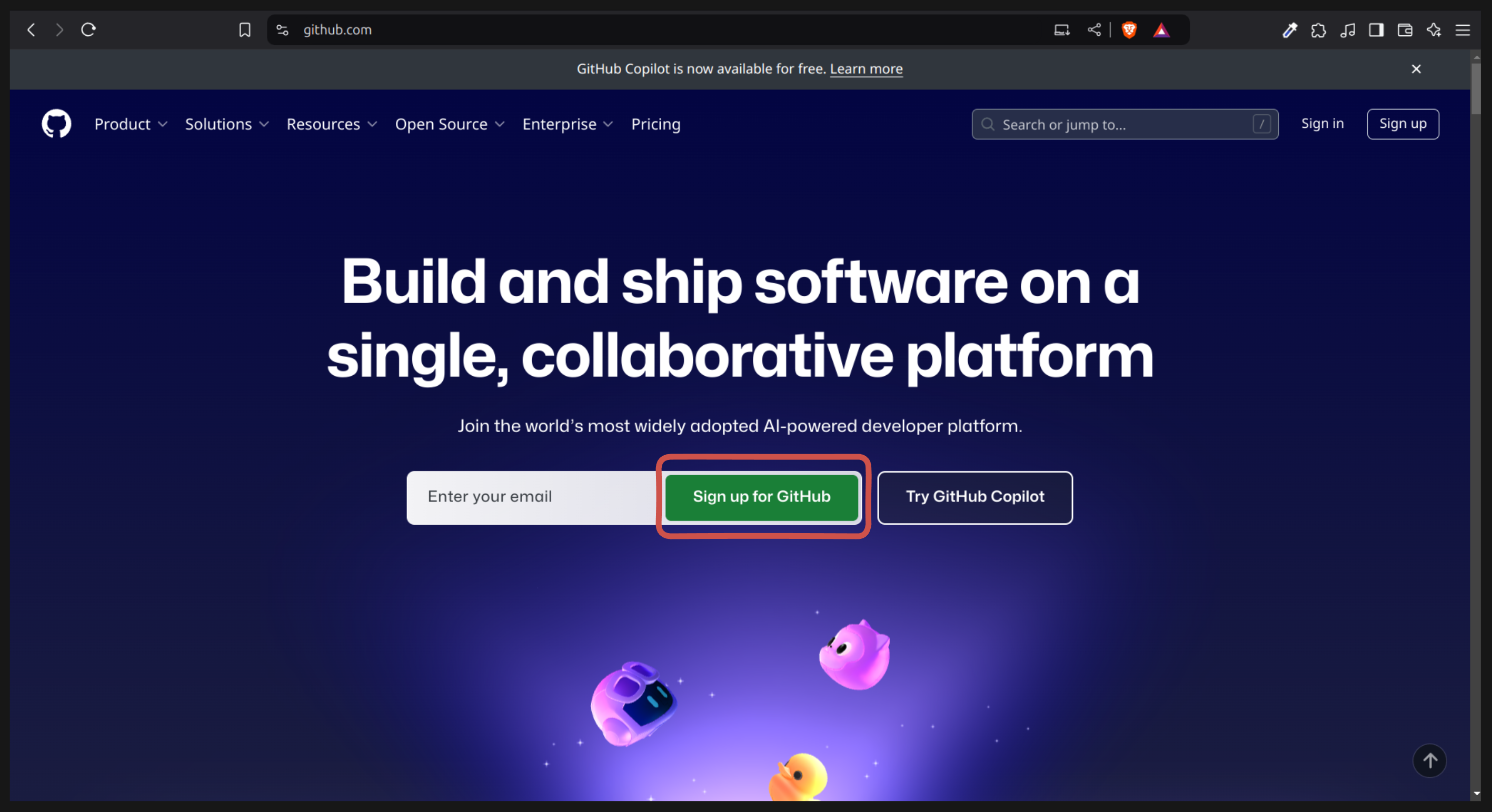
🪜 Step 2: Click on “Sign up for GitHub”
On the homepage, click the Sign up for GitHub button.
🪜 Step 3: Fill in Your Details
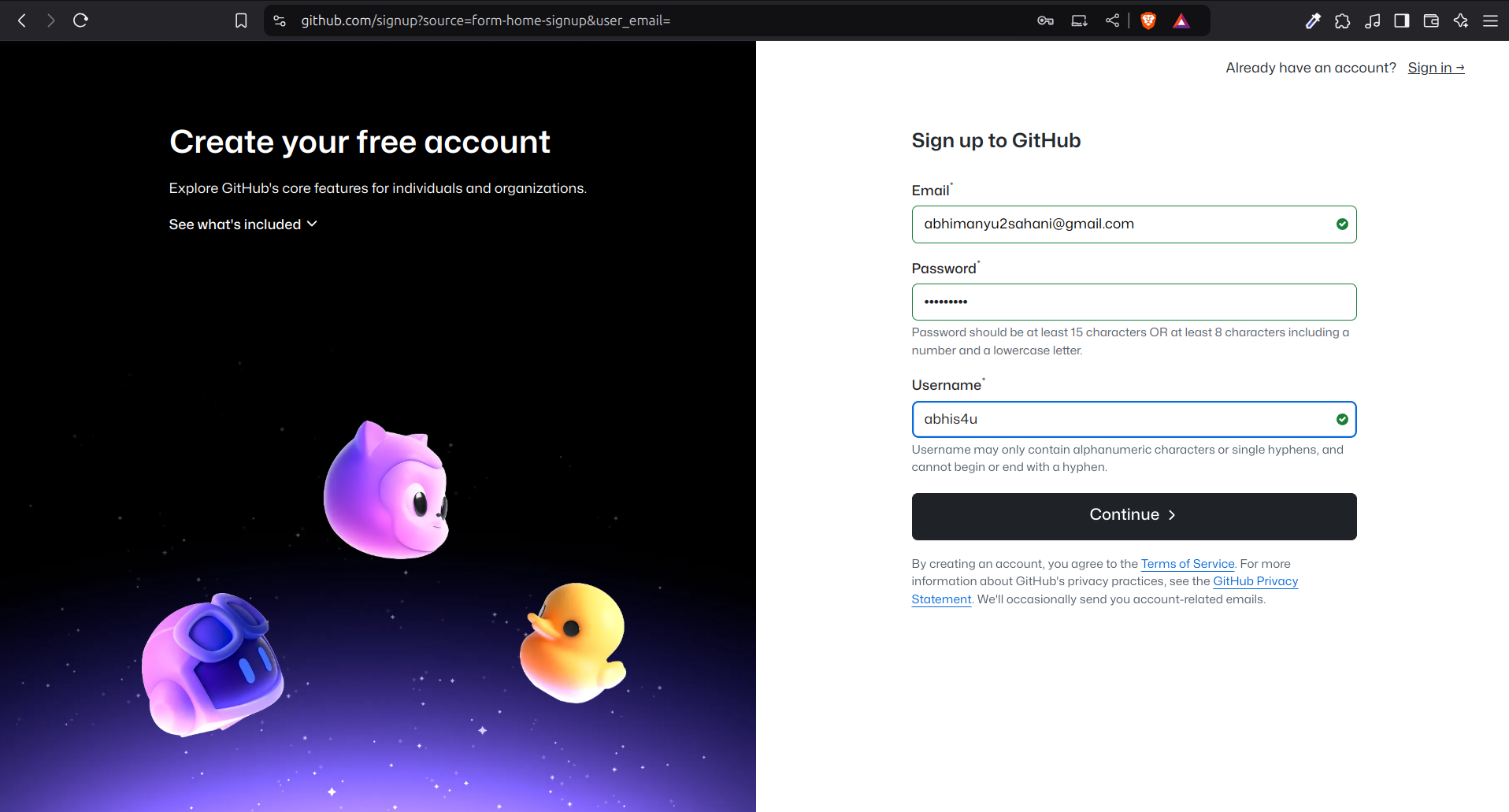
You’ll be taken to the Sign up page.
Enter the following details:
- Email address
- Password
- Username
Then click on the Continue button.
🪜 Step 4: Verify Your Account
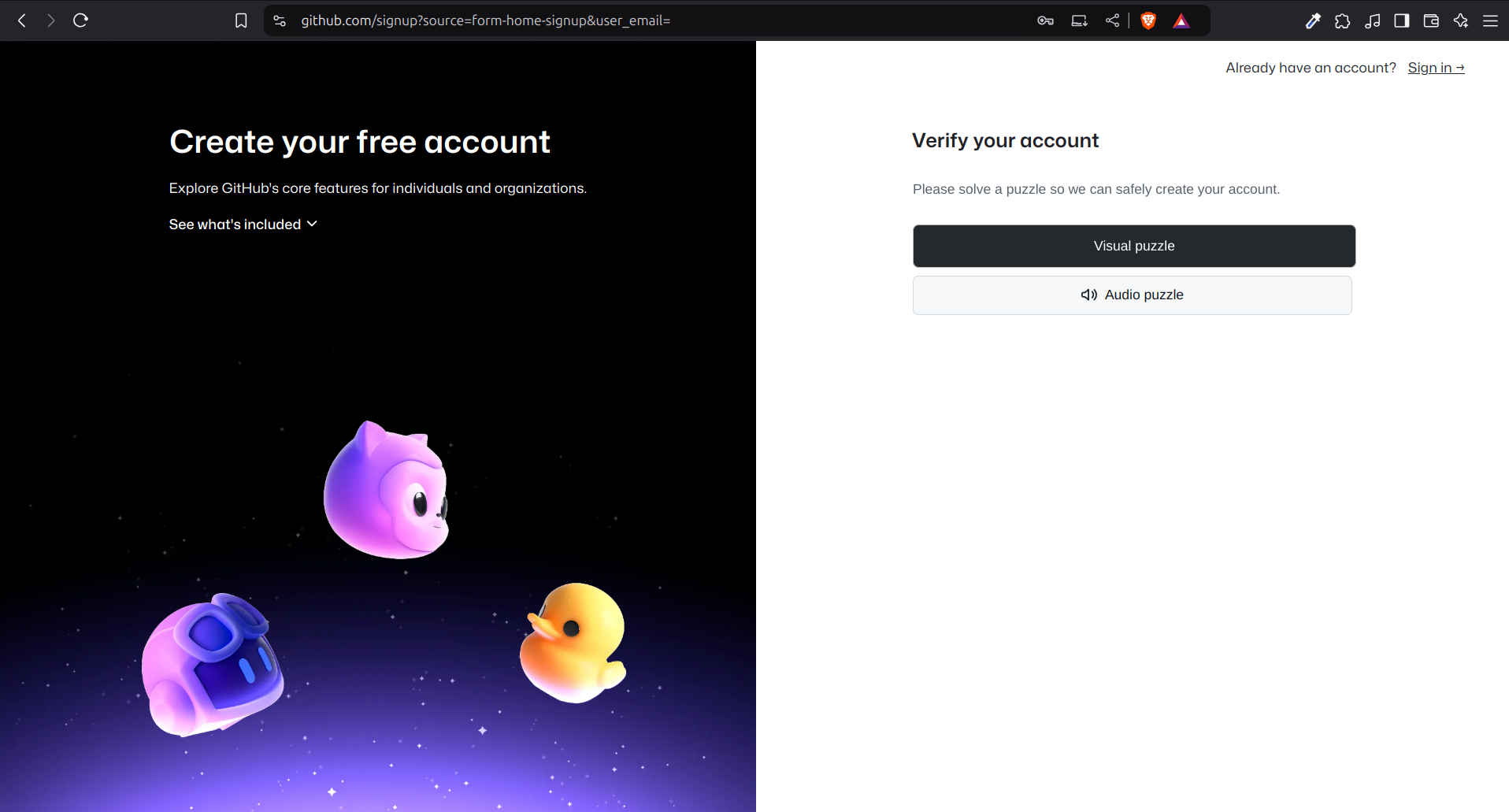
GitHub will ask you to verify that you’re a real person.
You can choose one of the two options:
- Visual puzzle
- Audio puzzle
Here, we’ll use the Visual puzzle option.
🪜 Step 5: Complete the Puzzle
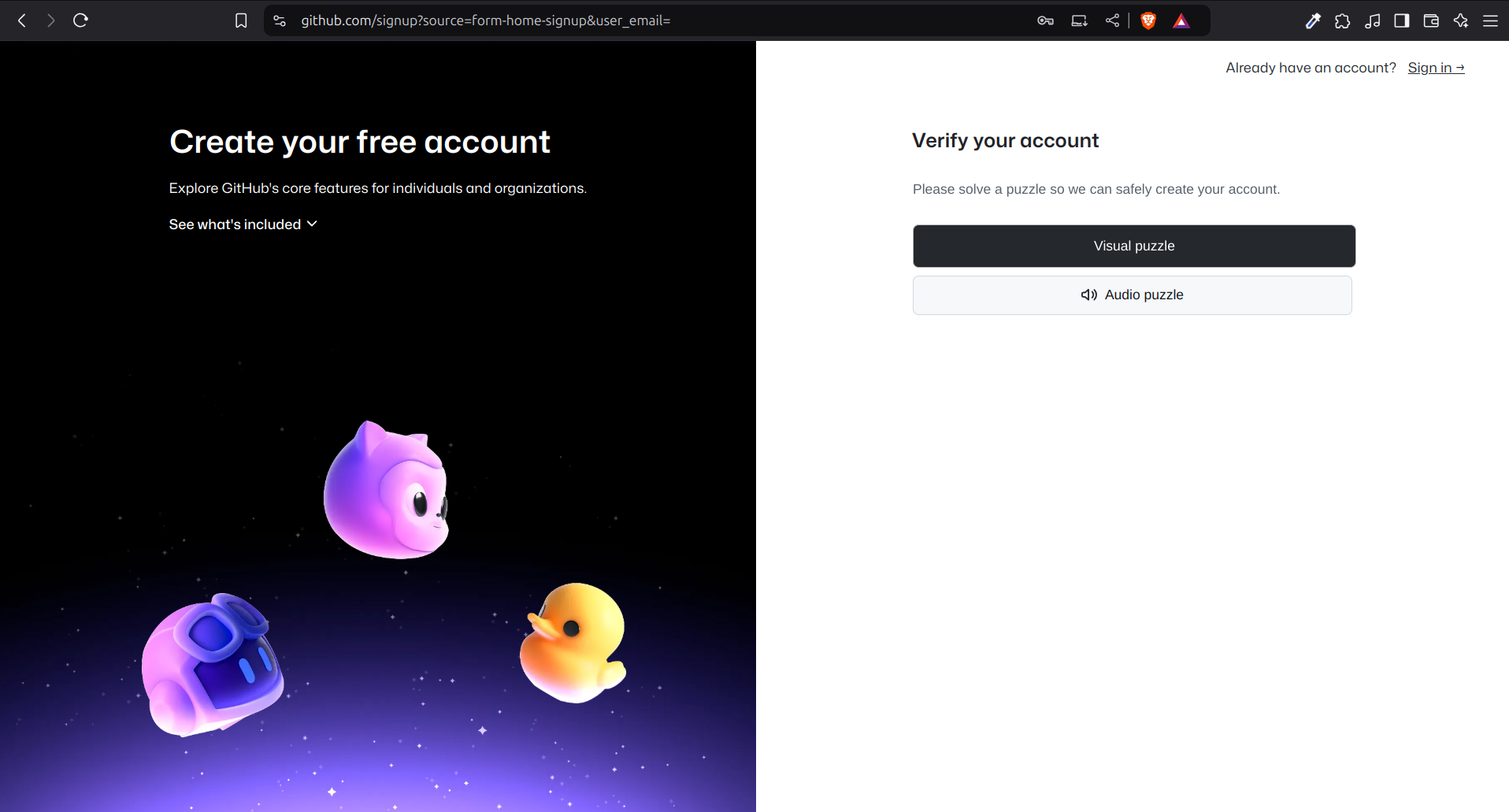
Match the directions shown in the image and click Submit.
🪜 Step 6: Verify Your Email
Next, you’ll see the Email verification page.
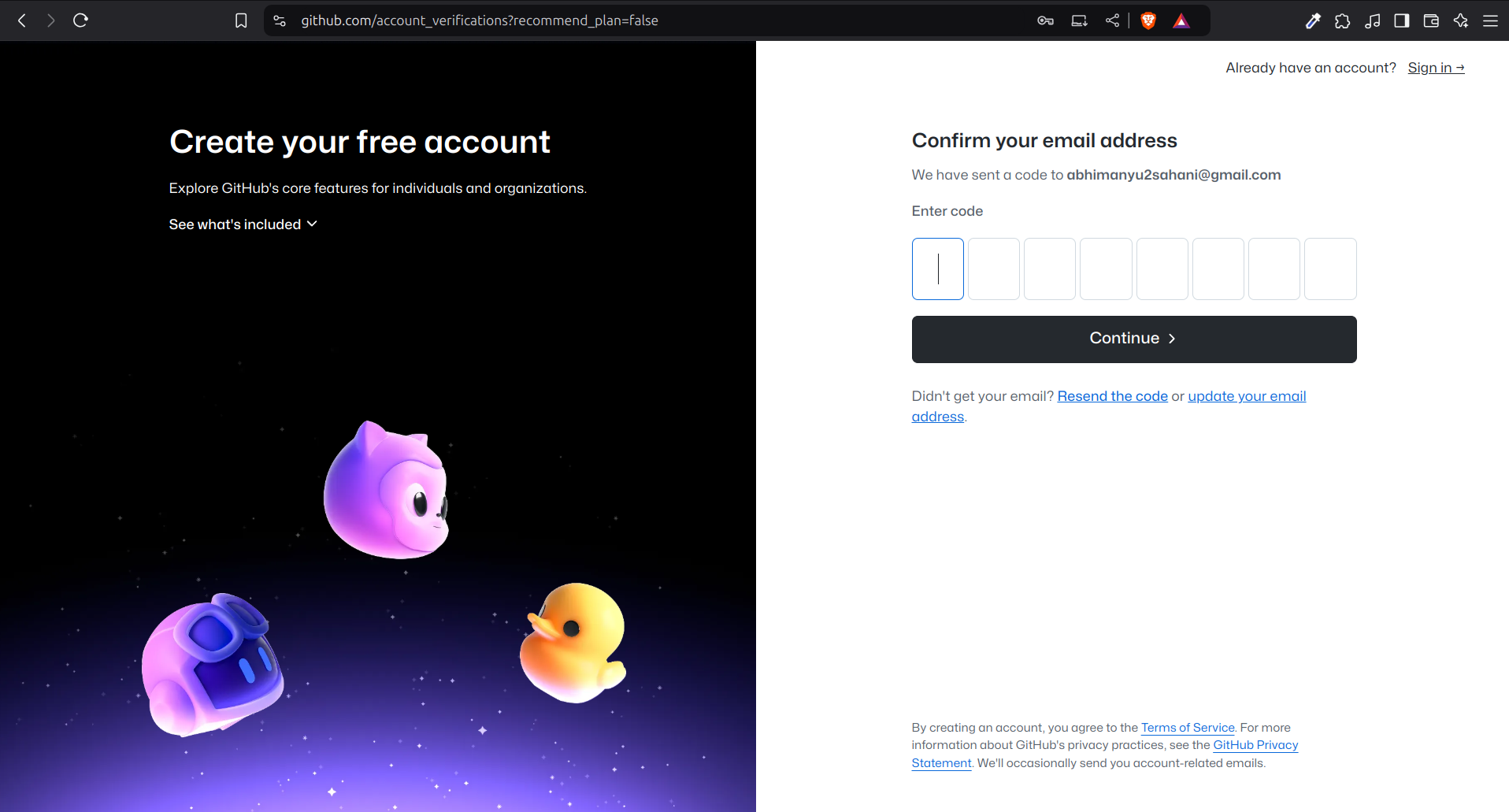
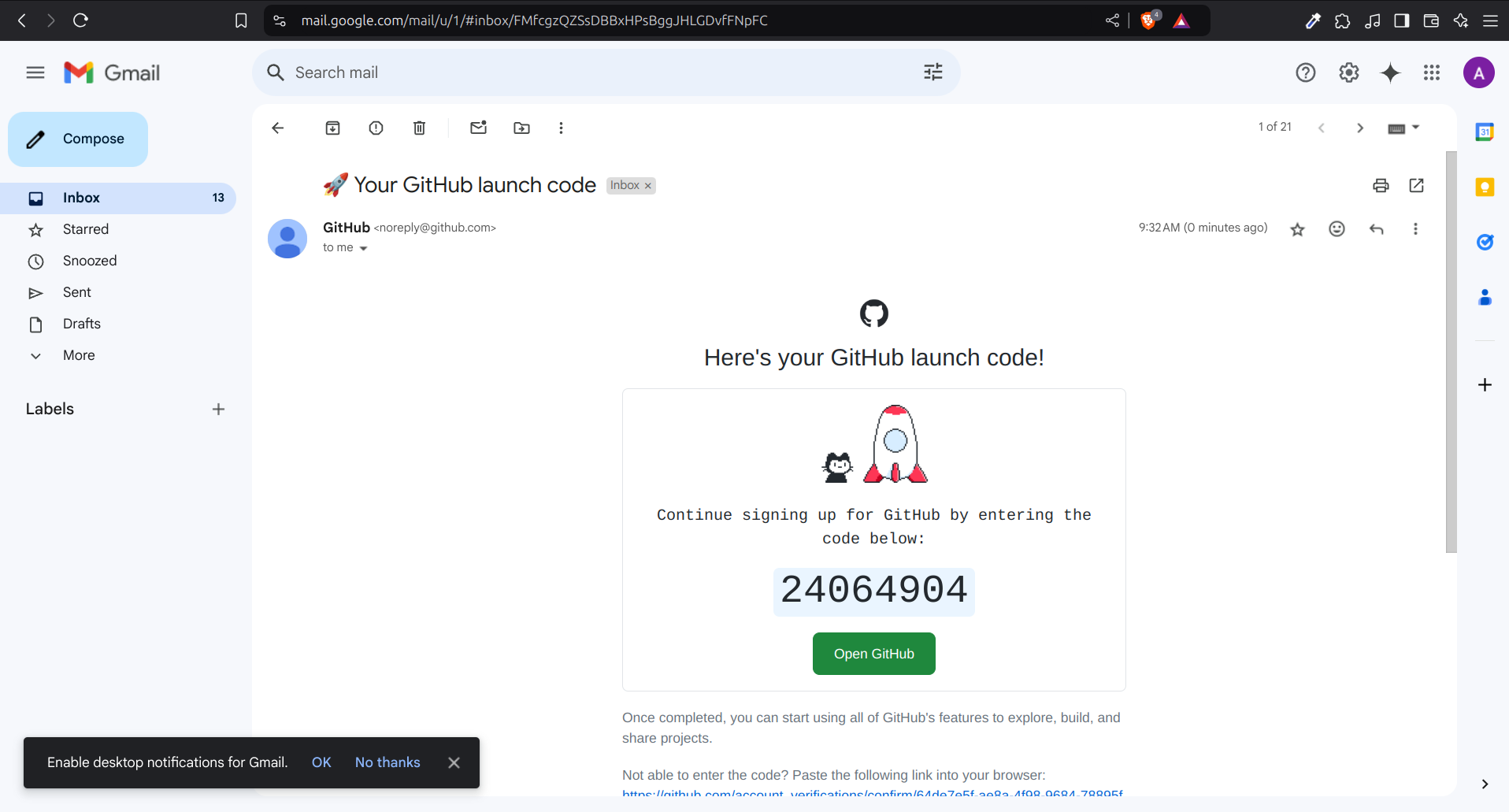
Check your email inbox for a verification email from GitHub.
Enter the verification code you received.
🪜 Step 7: Sign In to Your Account
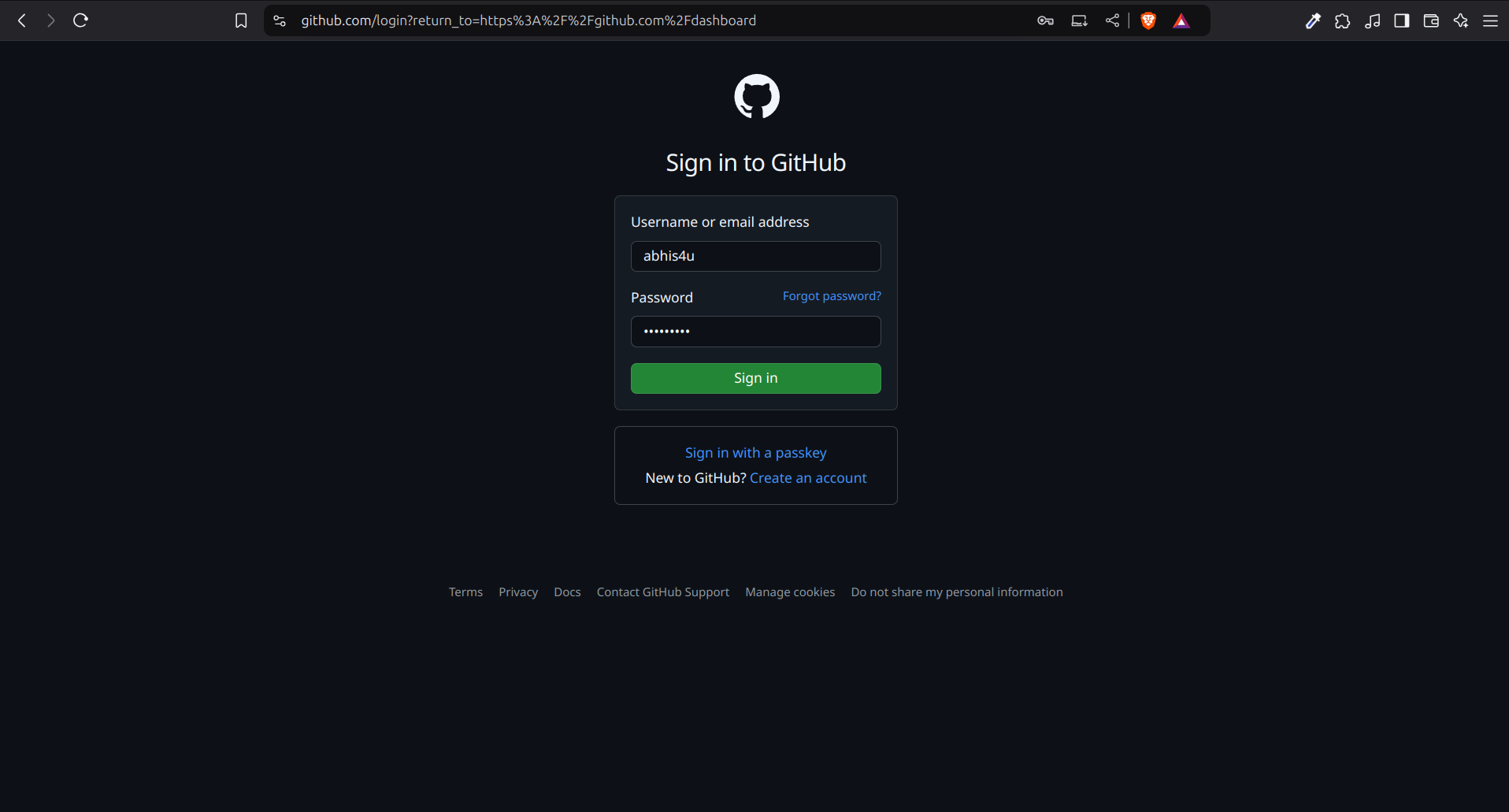
Once your email is verified, GitHub will take you to the Login page.
Enter your Username and Password, then click on Sign in.
🪜 Step 8: Welcome to Your GitHub Dashboard 🎉
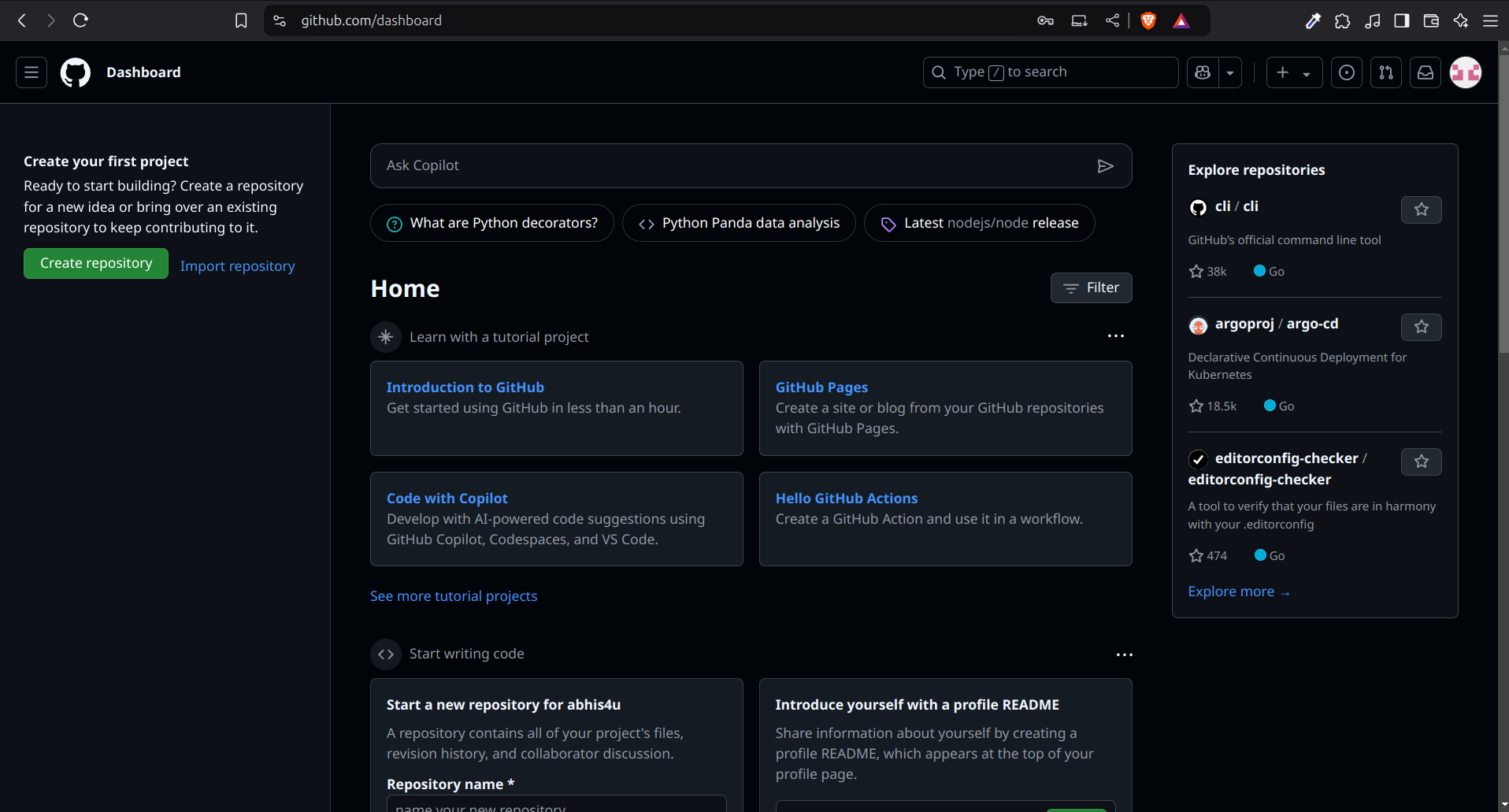
You’ve successfully created your GitHub account!
You’ll now see your Dashboard, where you can create repositories, explore other projects, and manage your profile.
🪜 Step 9: Open Your Profile
Click your profile picture in the top-right corner to access your account settings, repositories, and activity.
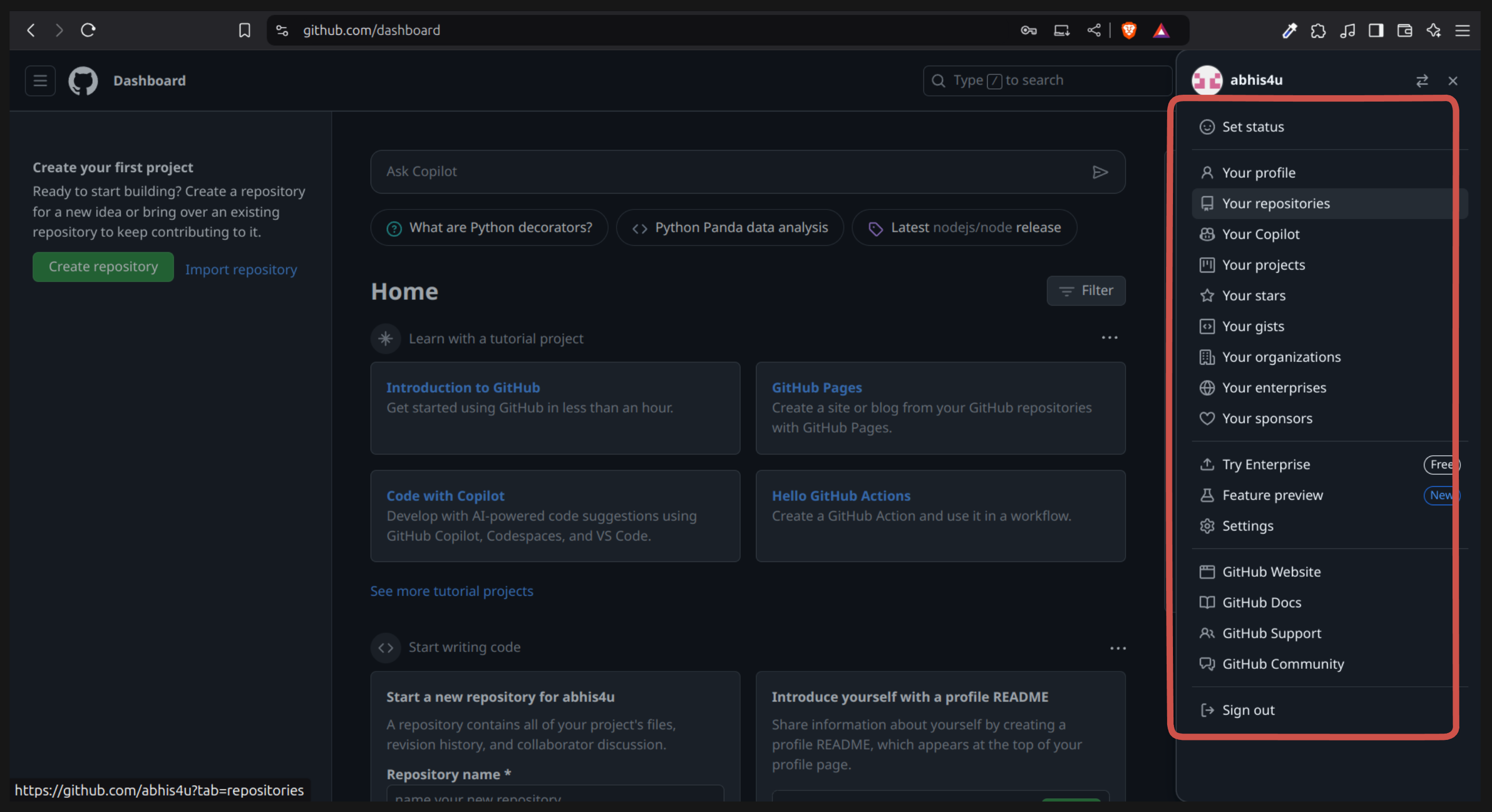
🎉 Congratulations!
You’ve successfully created your GitHub account.
Now you’re ready to:
- Create and upload your first project
- Explore open-source repositories
- Collaborate with classmates or developers